
Click on the links below to open the relevant Tech How-to Tutorial:
- Overview
The devices in the computer lab consist of the following: a server, virtual machine, teacher pc and workstations that are part android tv-boxes and WCED mini-pc’s.
In order for the lab to operate the server needs to be on and the virtual machine needs to be running and you must be able to log into it.
- Server
The server is the device that hosts the virtual machine, storing all information/data.

- To switch on the server you press the power button on the device.
- The server must be switched on every morning and off in the afternoon when the lab is in use.
- Hyper V manager
- How to Open, start and stop virtual machine.
- How to log into the virtual machine
- How to map a network drive.
- How to install computer programs.
- How to create a folder.
- How to share a folder.
- How to access a shared folder over the network.
- How to create shortcuts and add it to the public desktop folder.
- How to create a desktop shortcut from a website’s URL.
- Remote Desktop Connection

It’s a program that allows a user to connect another computer over a computer network.
- Internet

Schools will have up to two ISP (internet Service Providers) that provide internet to schools.
- Technical issues.
Before I can come to assist a school for technical issues the school must log a ticket on the form sheet.
- Command Prompt

Interface where you type commands into a terminal to execute processes on the machine.
- Troubleshooting
- Monitor/Device not switching on.
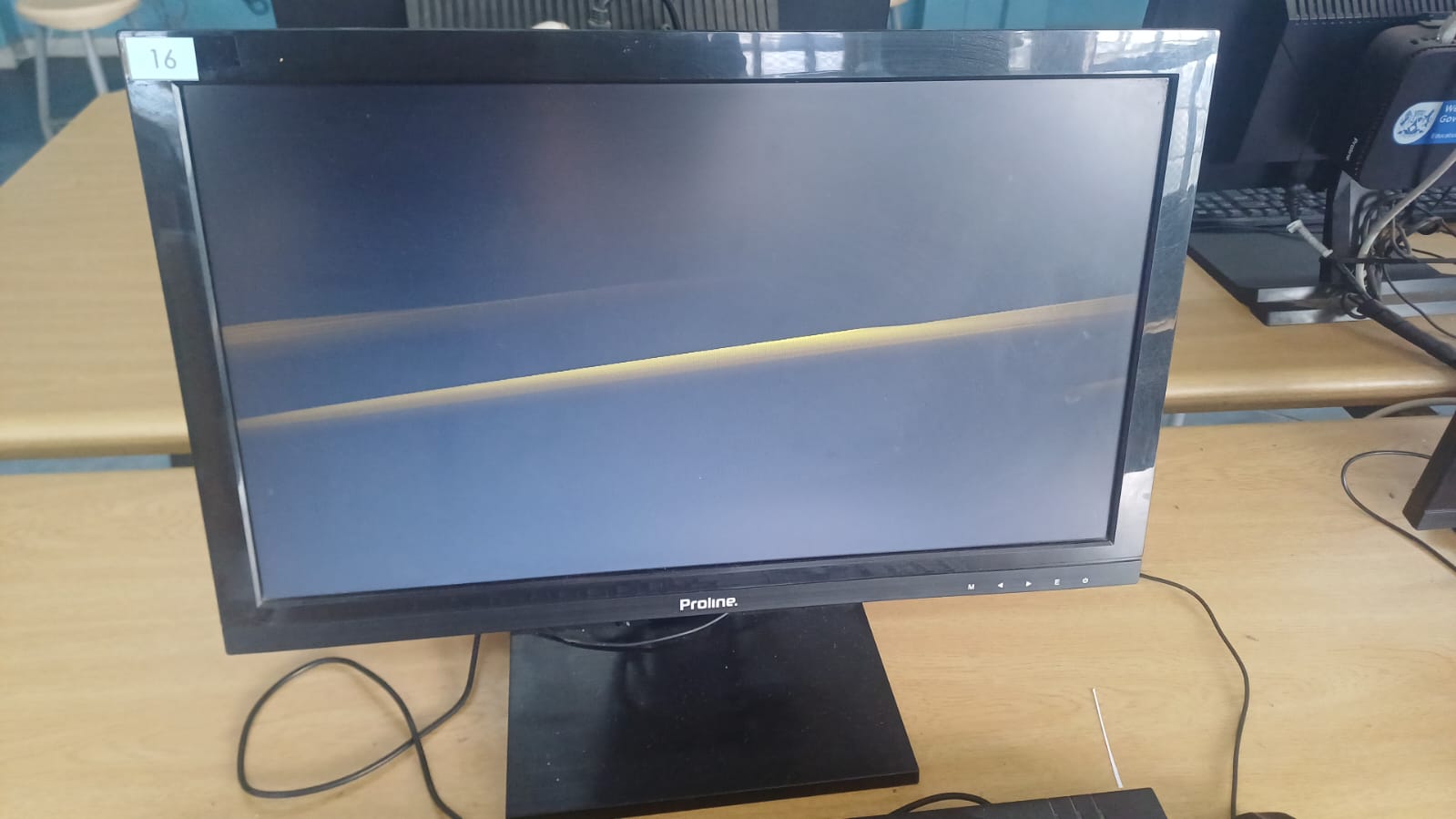
- Monitor not displaying correctly.
- Network Unavailable.
- Error “It's lonely here”.
- Check sound settings on workstations.
- Hyper V Manager Backing up state (vmms).
- How to forget a Wi-Fi Network.
- Connect devices to wcgschools network.
- How to connect with Microsoft Remote Desktop to a virtual machine.
- How to check the main server rearm counts.
- How to check for the remote desktop licensing (Virtual Machine).
- Computer Lab device accounts