
Overview
The devices in the computer lab consist of the following: a server, virtual machine, teacher pc and workstations that are part android tv-boxes and WCED mini-pc’s.
In order for the lab to operate the server needs to be on and the virtual machine needs to be running and you must be able to log into it.
1. Server
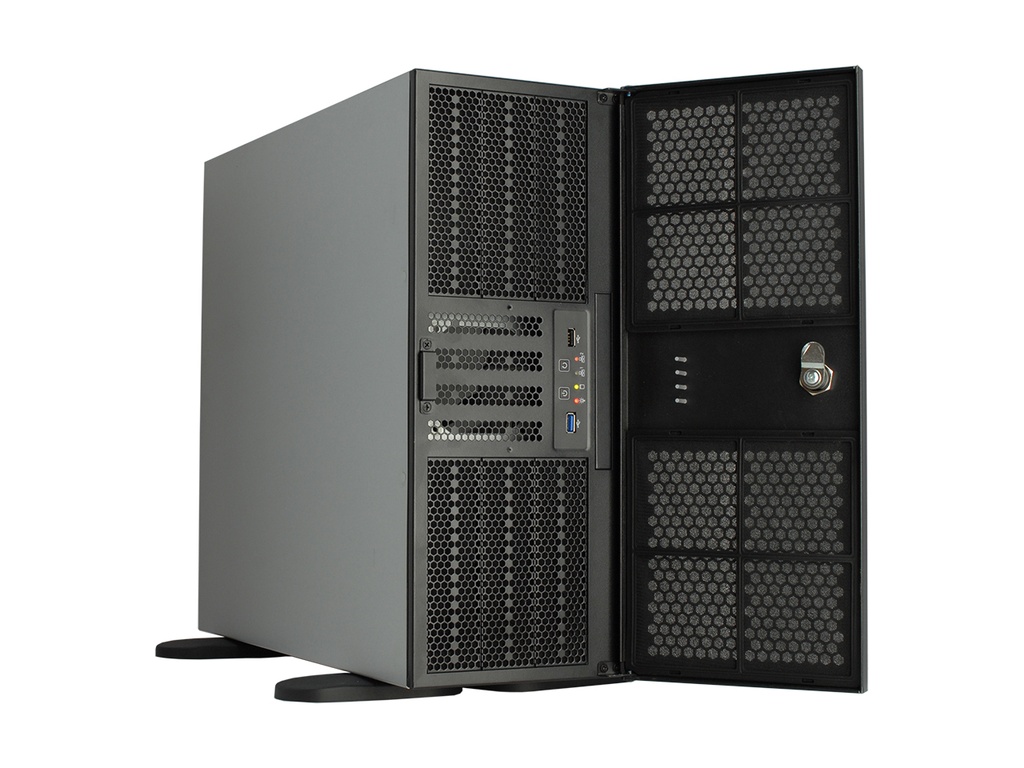
The server is the device that hosts the virtual machine, storing all information/data.

- To switch on the server you press the power button on the device.
- The server must be switched on every morning and off in the afternoon when the lab is in use.
2. Hyper V Manager
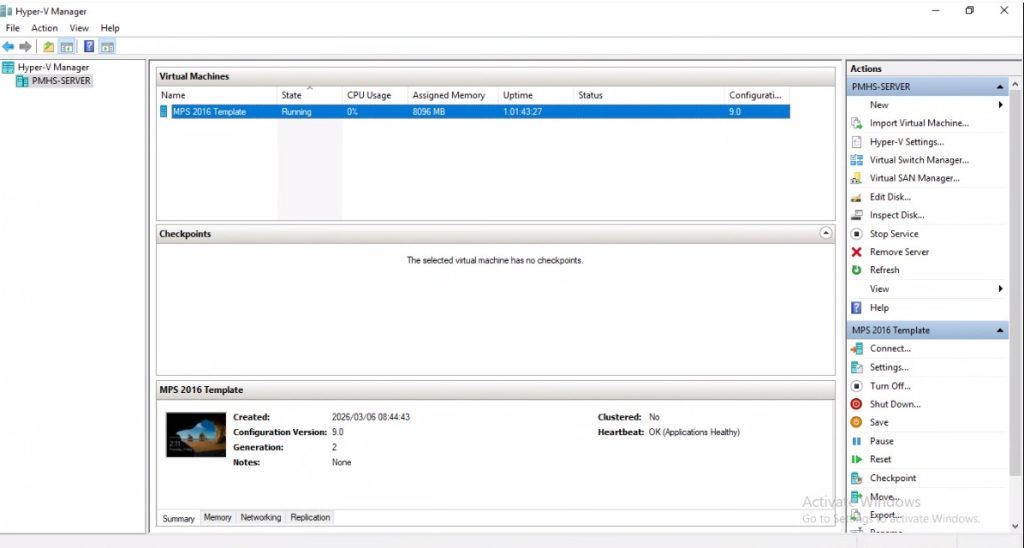
- How to Open, Start & Stop Virtual Machine.
- How to log into the Virtual Machine.
- How to map a network drive.
- How to install computer programs.
- How to create a folder.
- How to share a folder.
- How to access a shared folder over the public desktop folder.
- How to create shortcuts and add it to the public desktop folder.
- How to create a desktop shortcut from a website's URL.
3. Remote Desktop Connection
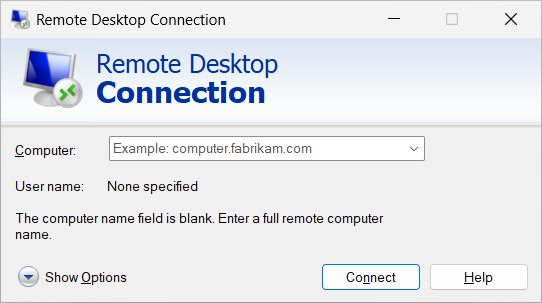
It’s a program that allows a user to connect another computer over a computer network.
4. Internet
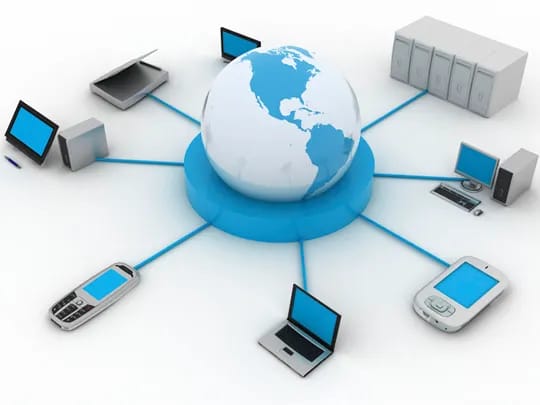
Schools will have up to two ISP (internet Service Providers) that provide internet to schools.
5. Technical Issues
Before I can come to assist a school for technical issues the school must log a ticket on the form sheet.
6. Command Prompt
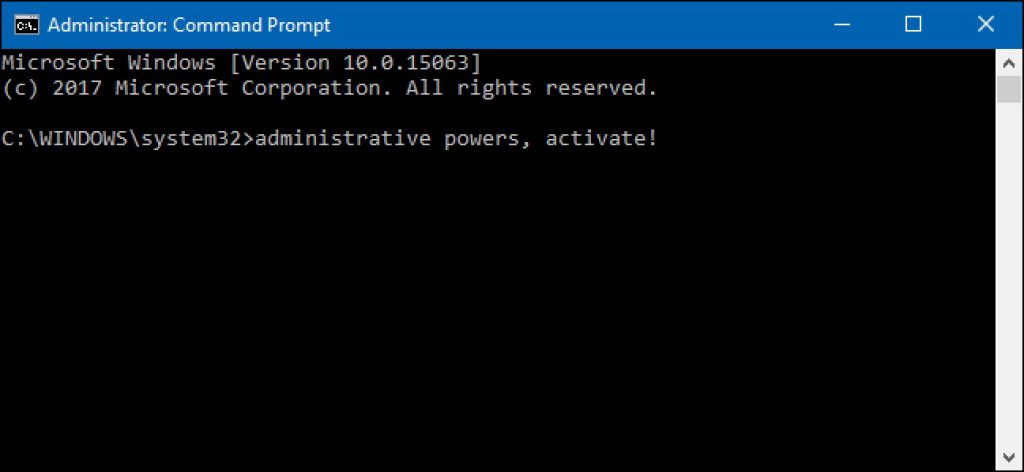
Interface where you type commands into a terminal to execute processes on the machine.
7. Troubleshooting

- Monitor/Device not switching on.
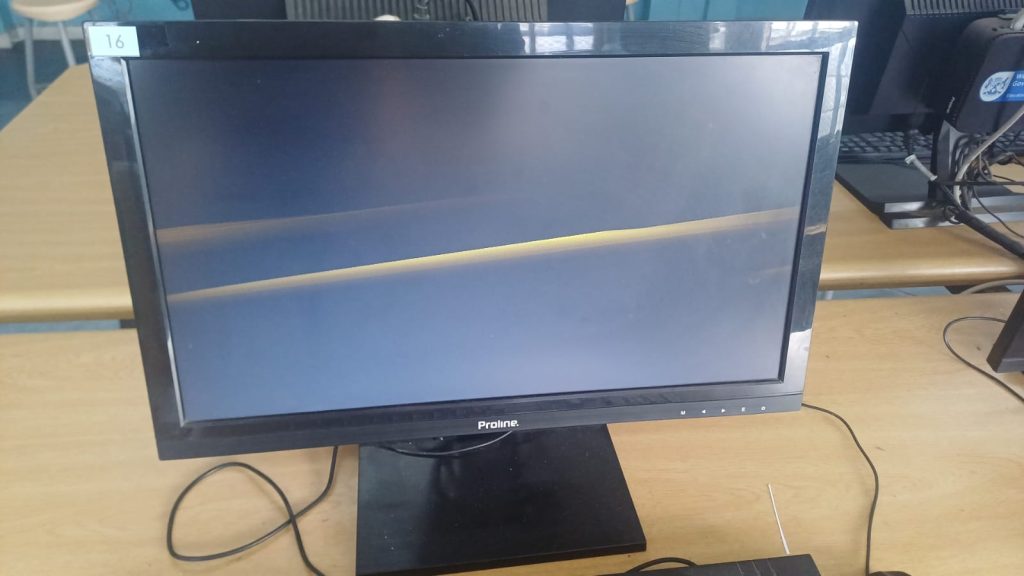
- Monitor not displaying correctly.
- Network Unavailable.
- Error "It's lonely here".
- Check sound settings on workstations.
- Hyper V Manager Backing Up State (vmms).
- How to forget a Wi-Fi Network.
- Connect devices to wcgschools network.
- How to connect with Microsoft Remote Desktop to a (Virtual Machine).
- How to check the main server rearm counts.
- How to check for the remote desktop licensing (Virtual Machine).
- Computer Lab devices accounts